
Gold_Morgan Quant V3 User Operation Manual
Complete online edition · 12 modules with real interface screenshots
Quick Operating Principles
- Log in to and connect TWS before connecting Quant.
- Before any order, confirm symbol, account, quantity, session, and order type.
- If you see BLOCKED, DATA BLOCK, UNKNOWN, or INVALID, investigate the cause instead of repeatedly clicking.
- For automated strategies, use WATCH first, test in Paper, and enable AUTO only after validation.
- IBKR Broker state is the final truth for orders and positions.
1. TWS Connection and Startup
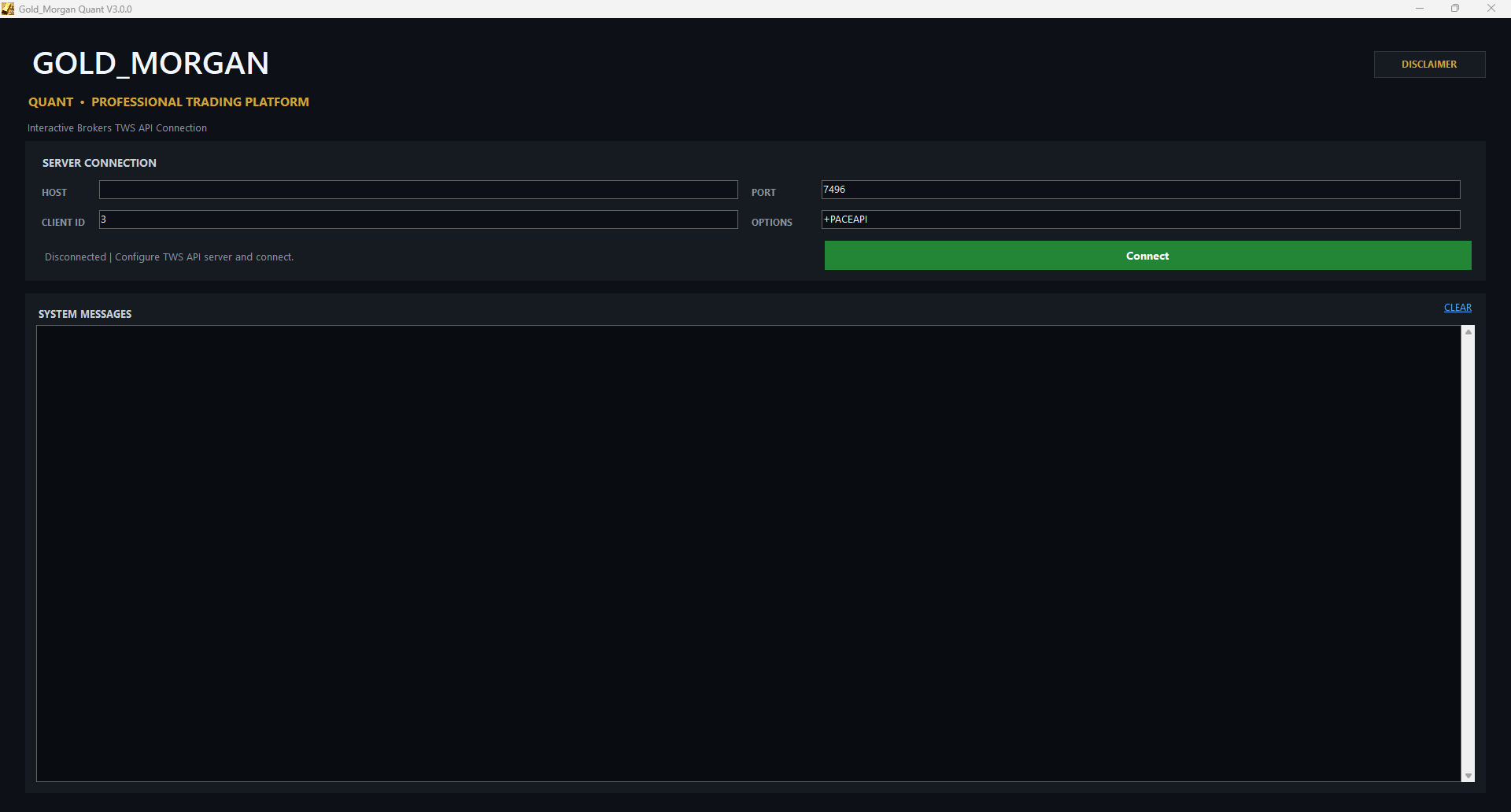
Connect Gold_Morgan Quant to the Interactive Brokers TWS API before using the trading interface.
| UI / Parameter | Meaning |
|---|---|
| HOST | Use 127.0.0.1 (or localhost) when TWS and Quant run on the same computer. |
| PORT | Must match the TWS API Socket Port. Common defaults are 7496 for Live and 7497 for Paper; use the actual TWS setting if changed. |
| CLIENT ID | Identifies an API client. The default is normally fine; avoid duplicate IDs when multiple API programs connect. |
| OPTIONS | Normally keep the system default, for example +PACEAPI. |
| Connect | Establishes the API connection between Quant and TWS. |
| SYSTEM MESSAGES | Shows connection, API, error, and runtime messages. Include this area in support screenshots. |
| CLEAR | Clears only the on-screen log display; it does not delete account, order, or trade data. |
| DISCLAIMER | Opens risk disclosures and disclaimers. |
- Confirm TWS is logged in.
- Confirm the required TWS API socket settings and port are enabled.
- Click Connect and confirm the screen no longer shows Disconnected.
- If connection fails, check TWS status, HOST, PORT, firewall, and API permissions first.
2. Main Trading Interface
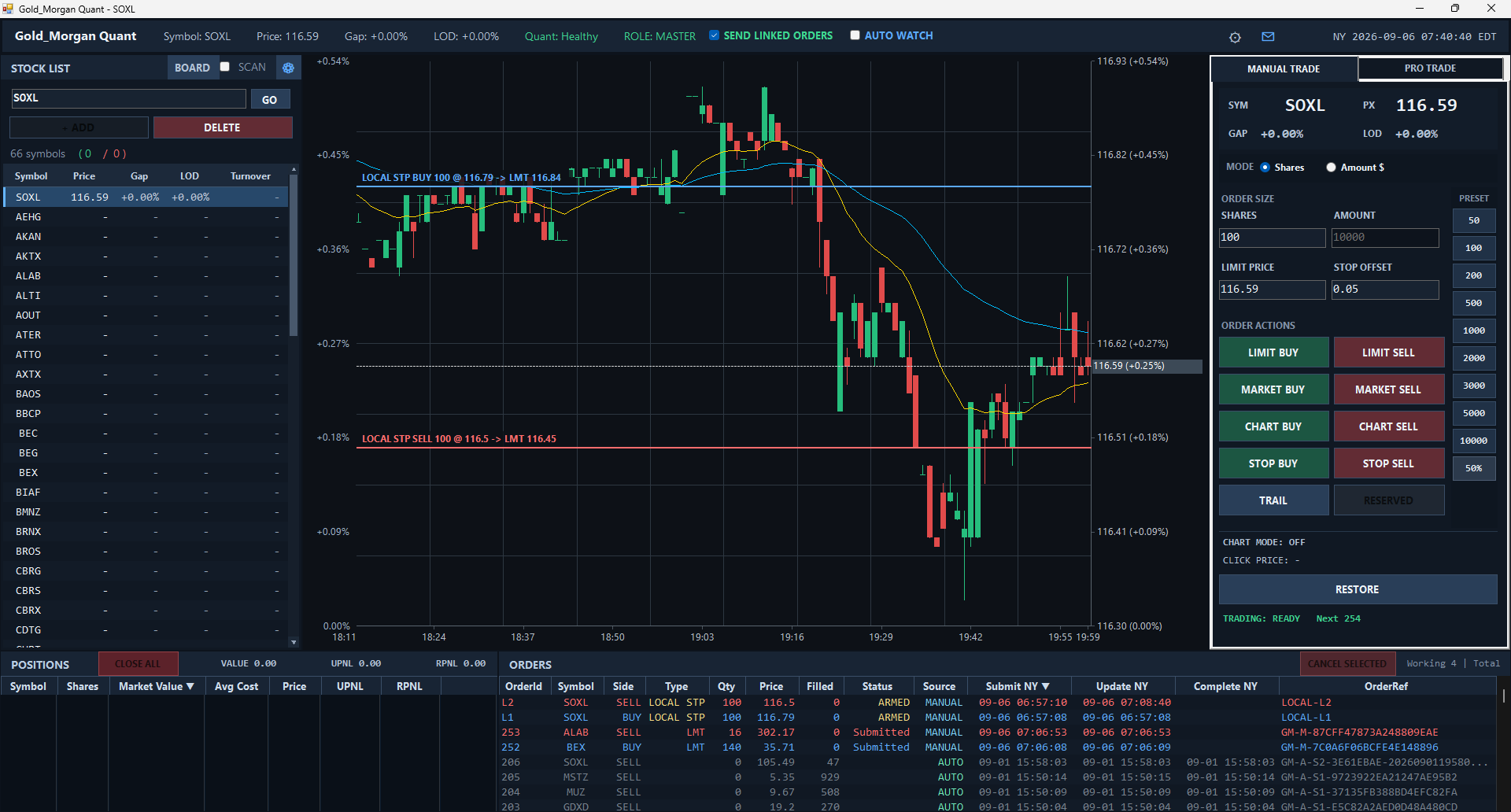
The main window contains the top status bar, stock list, chart, trading panel, and Positions / Orders areas.
| UI / Parameter | Meaning |
|---|---|
| Top status bar | Shows Symbol, Price, Gap, LOD, Quant Health, ROLE, SEND LINKED ORDERS, AUTO WATCH, and New York time. |
| STOCK LIST | Click a symbol to switch; use GO to navigate; +ADD / DELETE manage the list. |
| BOARD / SCAN | BOARD opens Market Board; SCAN enables/disables automatic scanning. |
| Chart | Shows 1-minute candles, EMA20/EMA60, current price, and order/stop price lines. |
| MANUAL TRADE | Shares / Amount modes and Limit, Market, Chart, Stop order actions. |
| PRESET | Fast quantities such as 50, 100, 200, 500, 1000, 2000, 3000, 5000, 10000, and 50%. |
| POSITIONS | Shows Symbol, Shares, Market Value, Avg Cost, Price, UPNL, and RPNL. |
| ORDERS | Shows OrderId, Symbol, Side, Type, Qty, Price, Filled, Status, Source, timestamps, and OrderRef. |
| CLOSE ALL | Closes all positions. This is a high-impact action; verify the account and positions first. |
| CANCEL SELECTED | Cancels the selected working order; verify the Broker accepted the cancellation by checking Status. |
Source identifies where an order came from, for example MANUAL or AUTO. UPNL is unrealized P&L; RPNL is realized P&L.
3. MARKET BOARD
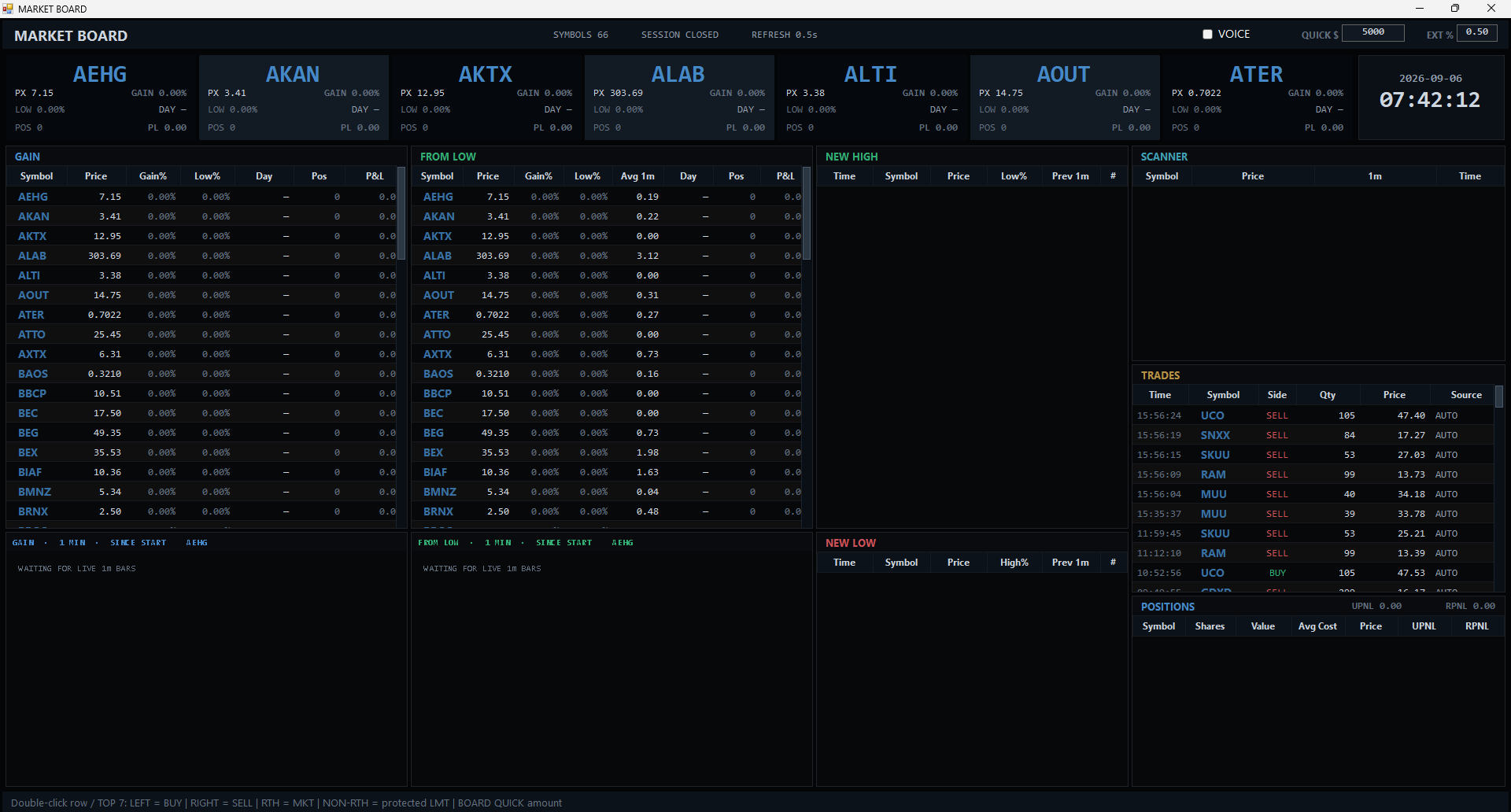
A fast intraday dashboard for leaders, rebounds from low, new highs/lows, scanner additions, trades, and positions.
| UI / Parameter | Meaning |
|---|---|
| TOP 7 | Top focus cards with PX, GAIN, LOW, DAY, POS, and PL. Double-click left for BUY and right for SELL. |
| QUICK $ | Sets the notional amount for Board quick orders. |
| VOICE | Turns Market Board voice alerts on or off. |
| GAIN | Ranks strength since the symbol entered the current Quant Runtime. |
| FROM LOW | Shows rebound from Runtime Low together with Avg 1m activity. |
| GAIN / FROM LOW - 1 MIN | Short-term live 1-minute movement; WAITING FOR LIVE 1m BARS means data is not ready. |
| NEW HIGH / NEW LOW | Logs Runtime highs/lows with time, price, previous 1m activity, and count. |
| SCANNER | Shows newly scanned symbols entering Quant. |
| TRADES | Recent fills with Time, Symbol, Side, Qty, Price, and Source. |
| POSITIONS | Current positions and UPNL/RPNL. |
During RTH the Board can use market execution; outside RTH it uses protected limit behavior to reduce price risk in thinner liquidity.
4. SCAN SETTINGS
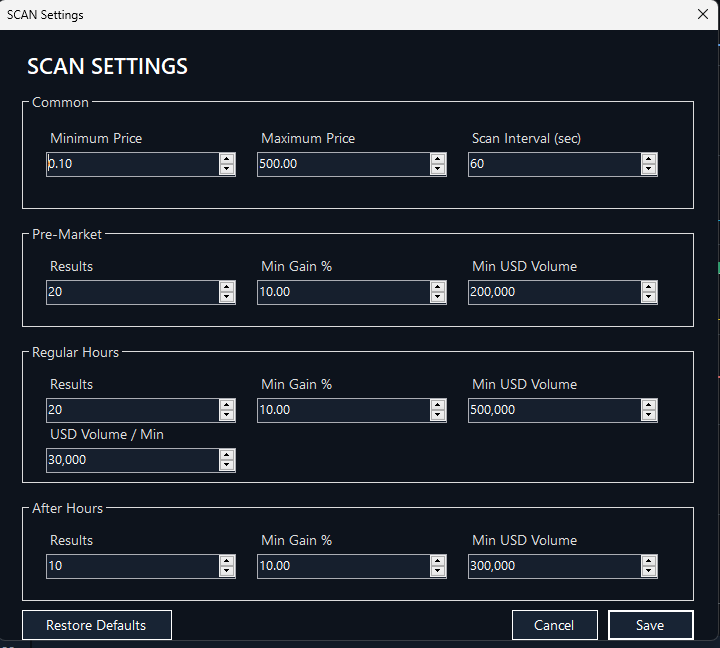
Configure automatic scanner filters for pre-market, regular hours, and after-hours.
| UI / Parameter | Meaning |
|---|---|
| Minimum / Maximum Price | Allowed stock price range. |
| Scan Interval (sec) | How often the automatic scan runs; 60 means once per minute. |
| Pre-Market Results | Maximum number of pre-market results per cycle. |
| Pre-Market Min Gain % | Minimum pre-market gain requirement. |
| Pre-Market Min USD Volume | Minimum pre-market dollar volume. |
| Regular Hours Results | Maximum number of RTH results per cycle. |
| Regular Hours Min Gain % | Minimum RTH gain requirement. |
| Regular Hours Min USD Volume | Minimum RTH dollar volume. |
| USD Volume / Min | Minimum dollar volume per minute to filter out currently inactive symbols. |
| After Hours | After-hours Results, Min Gain %, and Min USD Volume filters. |
| Restore Defaults | Restores the default scanner configuration. |
| Save / Cancel | Save and apply / discard unsaved changes. |
5. GLOBAL SETTINGS
Central access to License, Linked Account, Telegram, Auto Trade, and language settings.
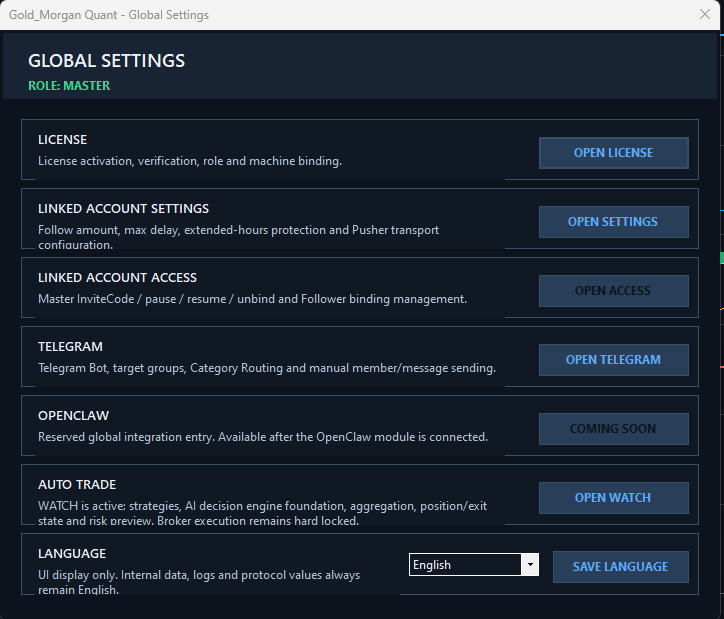
| UI / Parameter | Meaning |
|---|---|
| ROLE | Shows the current license role, such as MASTER / PRIMARY, LINKED, or an independent role. |
| LICENSE - OPEN LICENSE | Activation, verification, role, and machine binding. |
| LINKED ACCOUNT SETTINGS | Follow/Pusher transport configuration. |
| LINKED ACCOUNT ACCESS | Invite Code, binding, and unbinding management. |
| TELEGRAM | Bot, groups, routing, message workbench, and health. |
| OPENCLAW | Availability follows the current build; unavailable versions show COMING SOON. |
| AUTO TRADE - OPEN WATCH | Opens automated strategy monitoring. |
| LANGUAGE | Changes UI display language; internal data, logs, and protocol values remain English. |
If a module is unavailable, first verify that the current License includes the required entitlement.
6. LICENSE Management
View activation status, trial/formal license, role, machine binding, and offline grace.
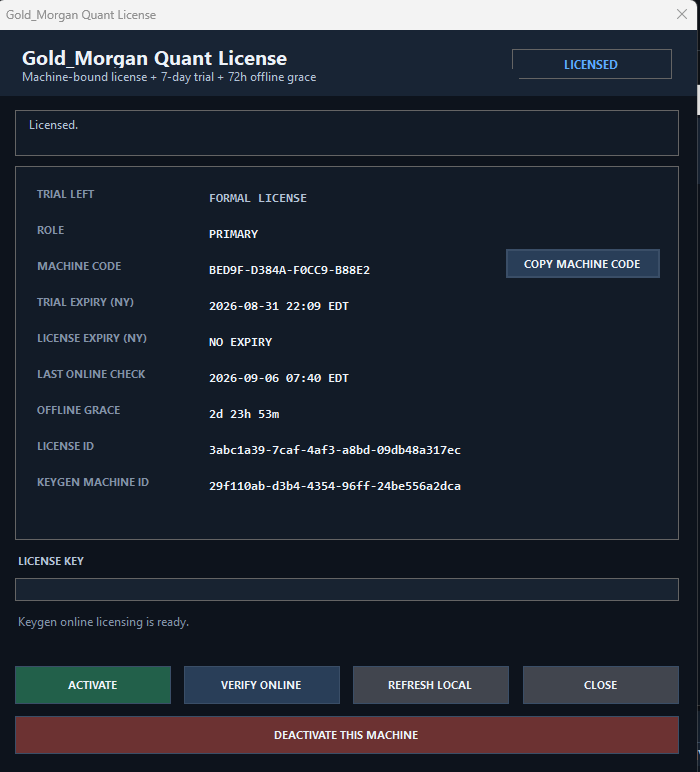
| UI / Parameter | Meaning |
|---|---|
| LICENSED | The current machine is successfully licensed. |
| TRIAL LEFT / FORMAL LICENSE | Shows remaining trial time or formal license state. |
| ROLE | The role granted by the current license, for example PRIMARY. |
| MACHINE CODE | Machine identifier; use COPY MACHINE CODE when support requests it. |
| TRIAL EXPIRY | Trial expiration time. |
| LICENSE EXPIRY | Formal license expiration; NO EXPIRY means no fixed date is set. |
| LAST ONLINE CHECK | Most recent successful online verification time in New York time. |
| OFFLINE GRACE | Remaining offline grace when the license server is temporarily unreachable; the UI describes a 72-hour mechanism. |
| LICENSE ID / KEYGEN MACHINE ID | Internal licensing IDs; normally no user action is required. |
| LICENSE KEY + ACTIVATE | Paste a license key and click ACTIVATE for first-time activation. |
| VERIFY ONLINE | Immediately validates the license online. |
| REFRESH LOCAL | Reloads the local license state. |
| DEACTIVATE THIS MACHINE | Removes the current machine binding. Do not use during normal operation unless you intend to move/rebind the license. |
7. FOLLOW SETTINGS / PUSHER
Configures real-time Follow/Pusher communication between a Primary account and Linked accounts.
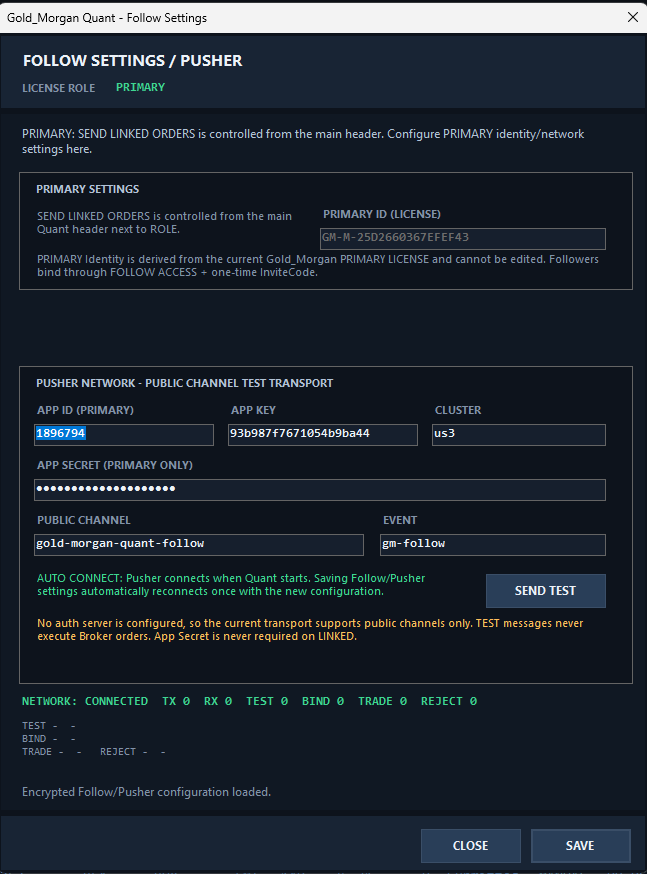
| UI / Parameter | Meaning |
|---|---|
| LICENSE ROLE | Shows the current role, for example PRIMARY. |
| PRIMARY ID (LICENSE) | Derived from the Primary License and not manually editable. |
| SEND LINKED ORDERS | Controlled from the main Quant header, not from this window. |
| APP ID / APP KEY / CLUSTER | Pusher application connection parameters. |
| APP SECRET | Sensitive Primary-side secret. Do not publish or share it with unrelated users. |
| PUBLIC CHANNEL / EVENT | Channel and event used by Follow transport. |
| AUTO CONNECT | Pusher connects automatically when Quant starts and reconnects using newly saved settings. |
| SEND TEST | Tests transport only; it never executes a Broker order. |
| NETWORK: CONNECTED | Indicates the Pusher network is currently connected. |
| TX / RX / TEST / BIND / TRADE / REJECT | Operational counters used for status checks and diagnostics. |
| SAVE / CLOSE | Save configuration / close the window. |
8. FOLLOW ACCESS / BINDING
A Linked account uses an Invite Code to create an active binding to one Primary account.
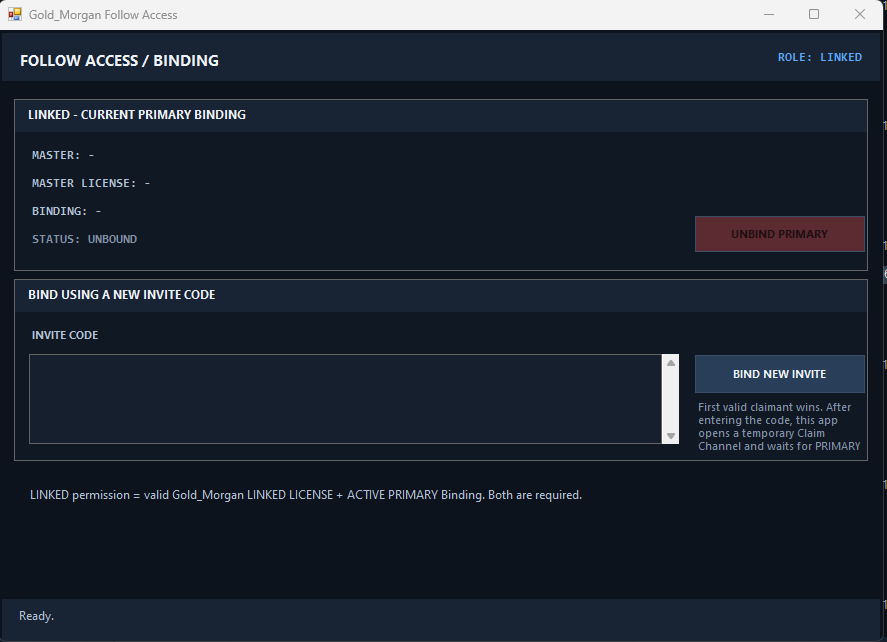
| UI / Parameter | Meaning |
|---|---|
| ROLE: LINKED | The account is using the Linked role. |
| MASTER / MASTER LICENSE / BINDING | Shows the currently bound Primary/Master information. |
| STATUS: UNBOUND | No active Primary binding exists, so Linked trading is not active. |
| INVITE CODE | Paste the Invite Code supplied by the Primary. |
| BIND NEW INVITE | Submits the code and enters the claim/binding flow. |
| First valid claimant wins | The first valid Linked claimant to successfully use a code receives that binding. |
| UNBIND PRIMARY | Removes the current Primary binding. A new valid Invite Code is required to bind again. |
- Get a new Invite Code from the Primary.
- Open FOLLOW ACCESS and paste it into INVITE CODE.
- Click BIND NEW INVITE and keep Quant and the network online.
- After completion, verify STATUS is no longer UNBOUND and confirm the Primary information.
9. TELEGRAM Notifications and Messaging
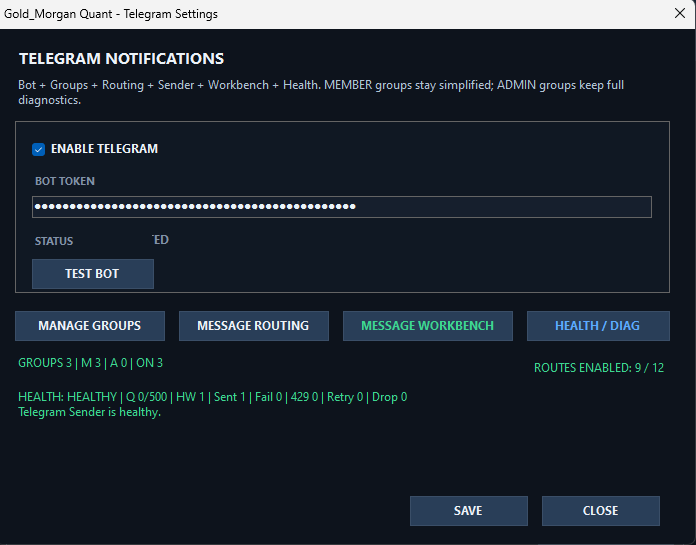
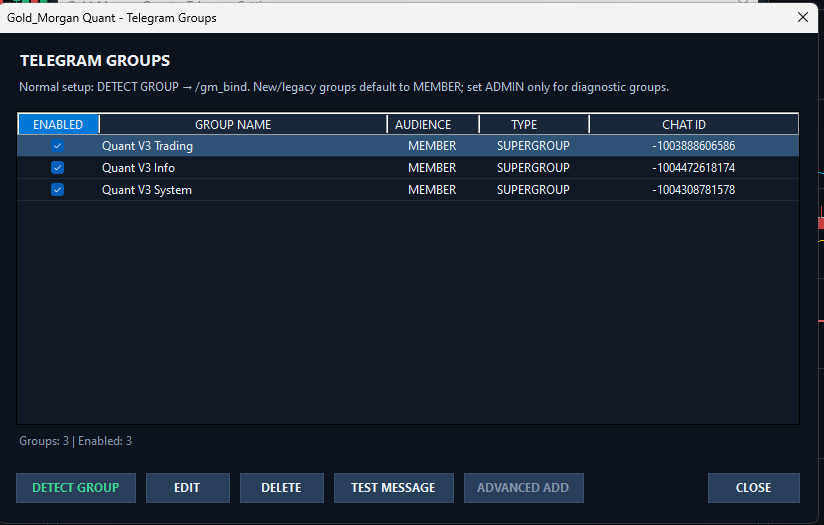
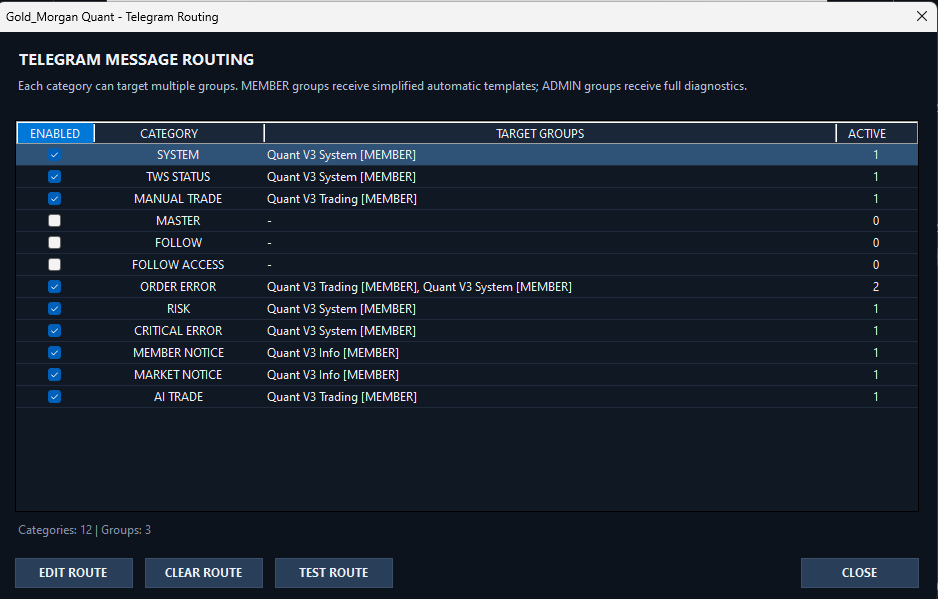
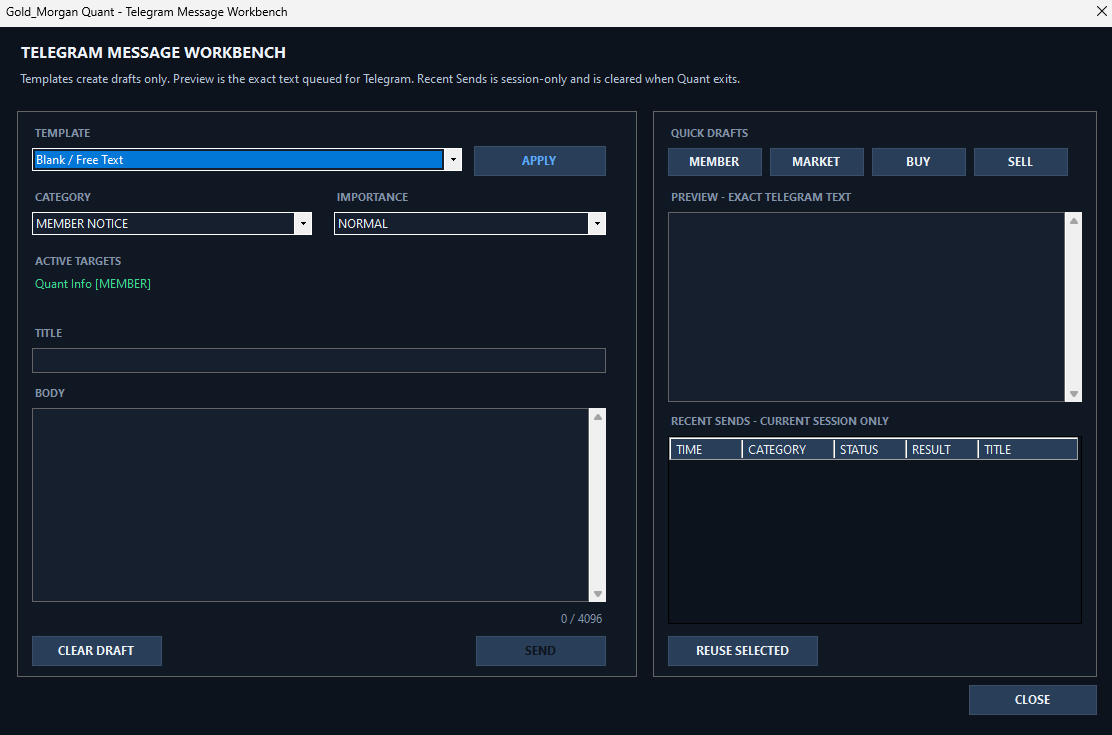
Configure the Bot, target groups, category routing, manual messages, and health diagnostics.
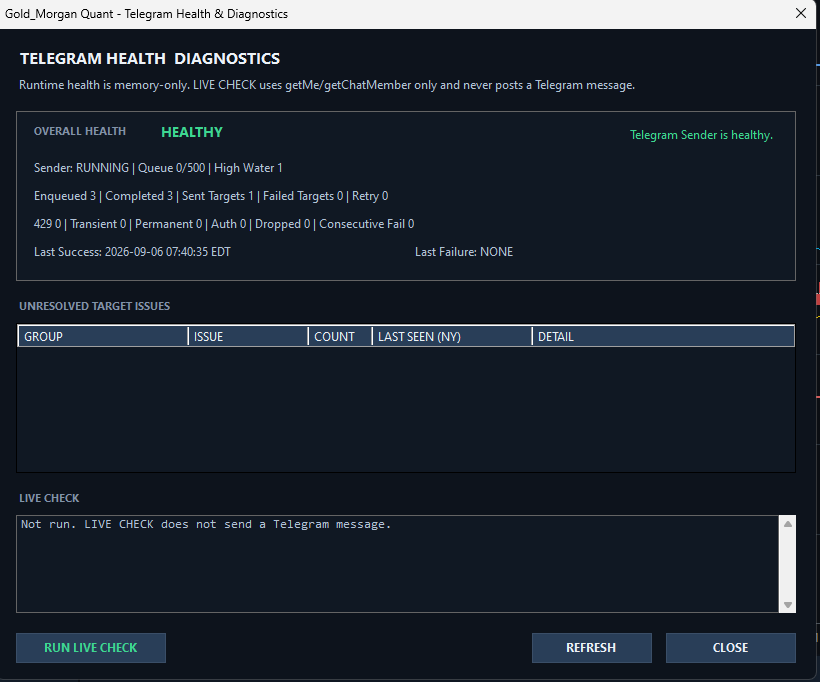
| UI / Parameter | Meaning |
|---|---|
| ENABLE TELEGRAM | Enables or pauses the Telegram Sender; click SAVE after changes. |
| BOT TOKEN | Telegram Bot token. Treat it like a password and never publish it. |
| TEST BOT | Checks whether Quant can reach the Telegram Bot. |
| MANAGE GROUPS | Manages target groups and Chat IDs. |
| DETECT GROUP | Recommended binding: add Bot to group -> send /gm_bind in the group -> click DETECT GROUP in Quant. |
| TEST MESSAGE | Sends a test message to the selected group. |
| AUDIENCE | MEMBER is simplified member-facing output; ADMIN can be used for full diagnostics. |
| MESSAGE ROUTING | Maps each message Category to one or more target groups. |
| EDIT / CLEAR / TEST ROUTE | Edit, clear, or test routing for the selected Category. |
| MESSAGE WORKBENCH | Creates and sends manual Member, Market, Buy, Sell, or free-text messages. |
| PREVIEW | Shows the exact text that will be queued for Telegram. |
| RECENT SENDS | Current Quant session only; cleared when Quant exits. |
| HEALTH / DIAG | Shows Sender, Queue, Failed, Retry, and unresolved target issues. |
| RUN LIVE CHECK | Performs a live API check without posting a Telegram message. |
10. AUTO TRADE WATCH and Strategy 1
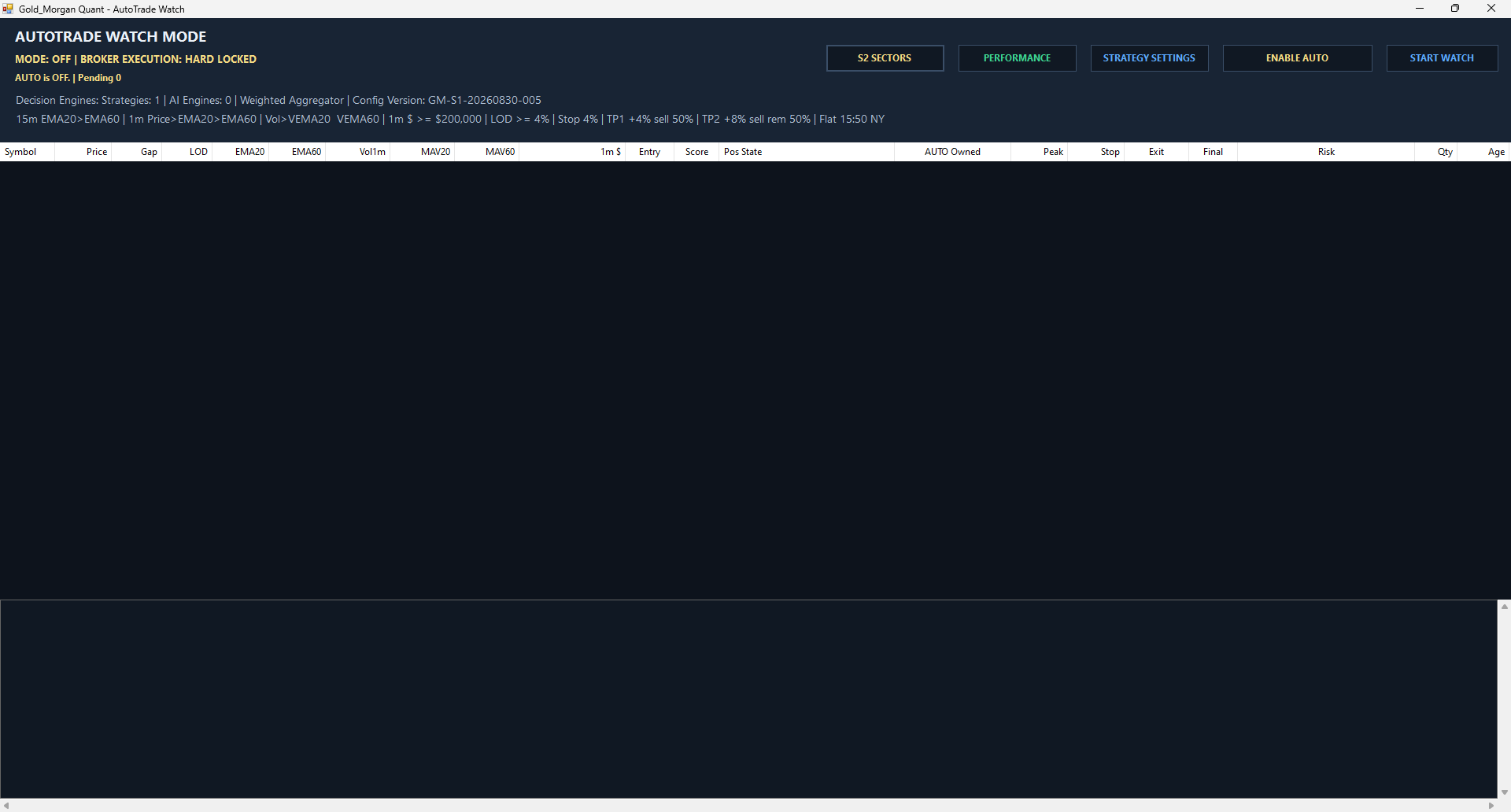
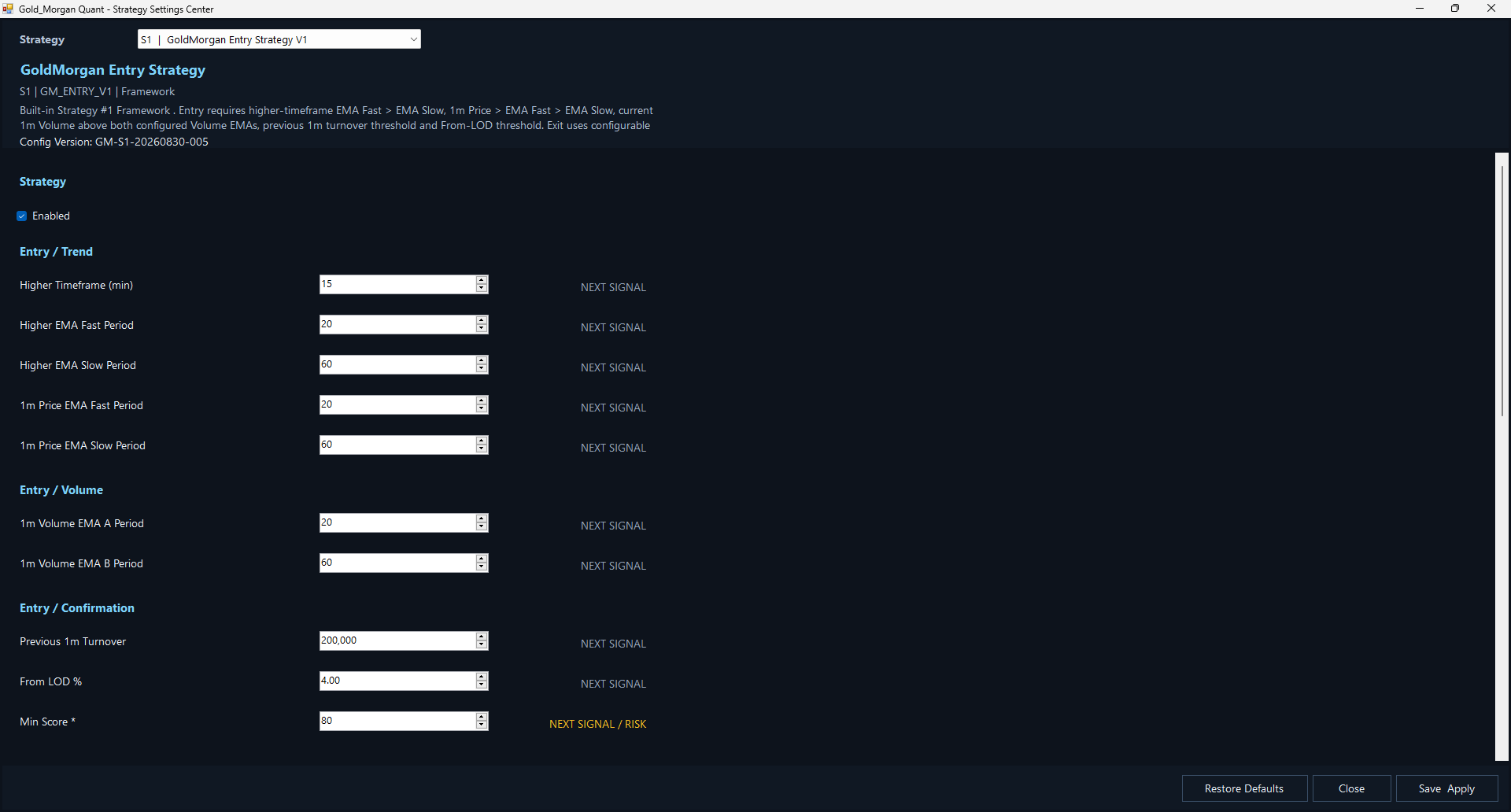
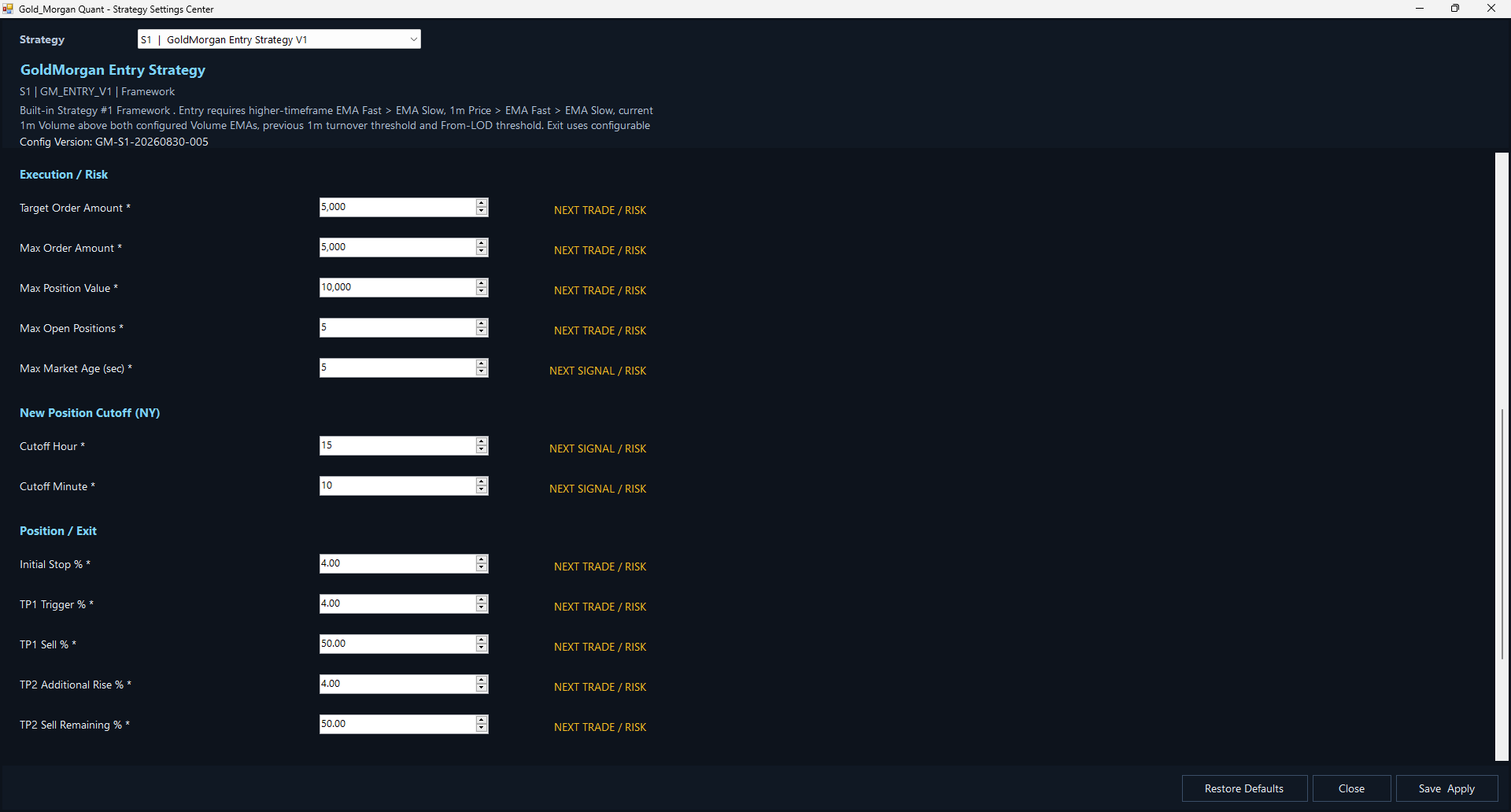
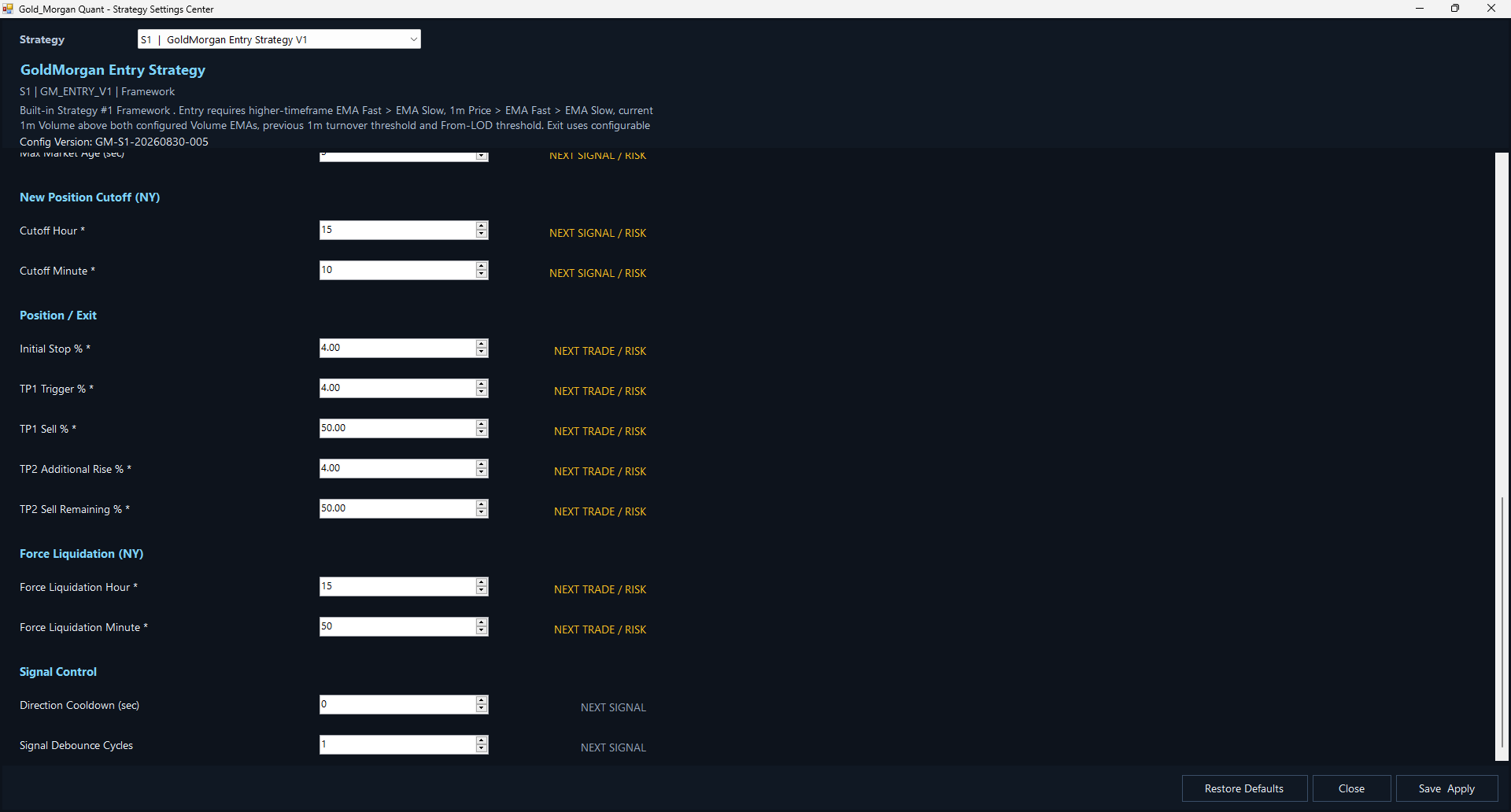
WATCH displays strategy signals and risk state; Strategy Settings controls S1 entry, execution, stops, profit taking, and time rules.
| UI / Parameter | Meaning |
|---|---|
| MODE / AUTO | OFF means automation is disabled; BROKER EXECUTION: HARD LOCKED means Broker auto execution is locked. |
| START WATCH | Starts signal, Score, risk, and position monitoring. WATCH is not the same as automated order submission. |
| ENABLE AUTO | Enables automated strategy execution. Verify TWS, market data, amounts, risk parameters, account, and positions first. |
| STRATEGY SETTINGS | Opens strategy configuration. |
| Higher Timeframe / EMA | Example: 15-minute EMA20 / EMA60 trend filter. |
| 1m Price EMA Fast/Slow | Example: 1-minute EMA20 / EMA60 price structure. |
| 1m Volume EMA A/B | Volume activity filters. |
| Previous 1m Turnover | Minimum previous-minute dollar turnover. |
| From LOD % | Minimum rise from the day low. |
| Min Score | Minimum strategy score required to continue entry evaluation. |
| Target / Max Order Amount | Target order notional / maximum order notional. |
| Max Position Value / Max Open Positions | Maximum strategy position per symbol / maximum simultaneous open positions. |
| Max Market Age | Maximum acceptable age of market data. |
| New Position Cutoff | No new entries after this New York time. |
| Initial Stop / TP1 / TP2 | Initial stop and staged take-profit settings. |
| Force Liquidation | New York time for forced end-of-day exit behavior. |
| Direction Cooldown / Debounce | Controls repeated direction signals and confirmation cycles. |
| Save Apply / Restore Defaults | Save and apply / restore defaults. |
11. Strategy 2 Sector / Basket Breadth
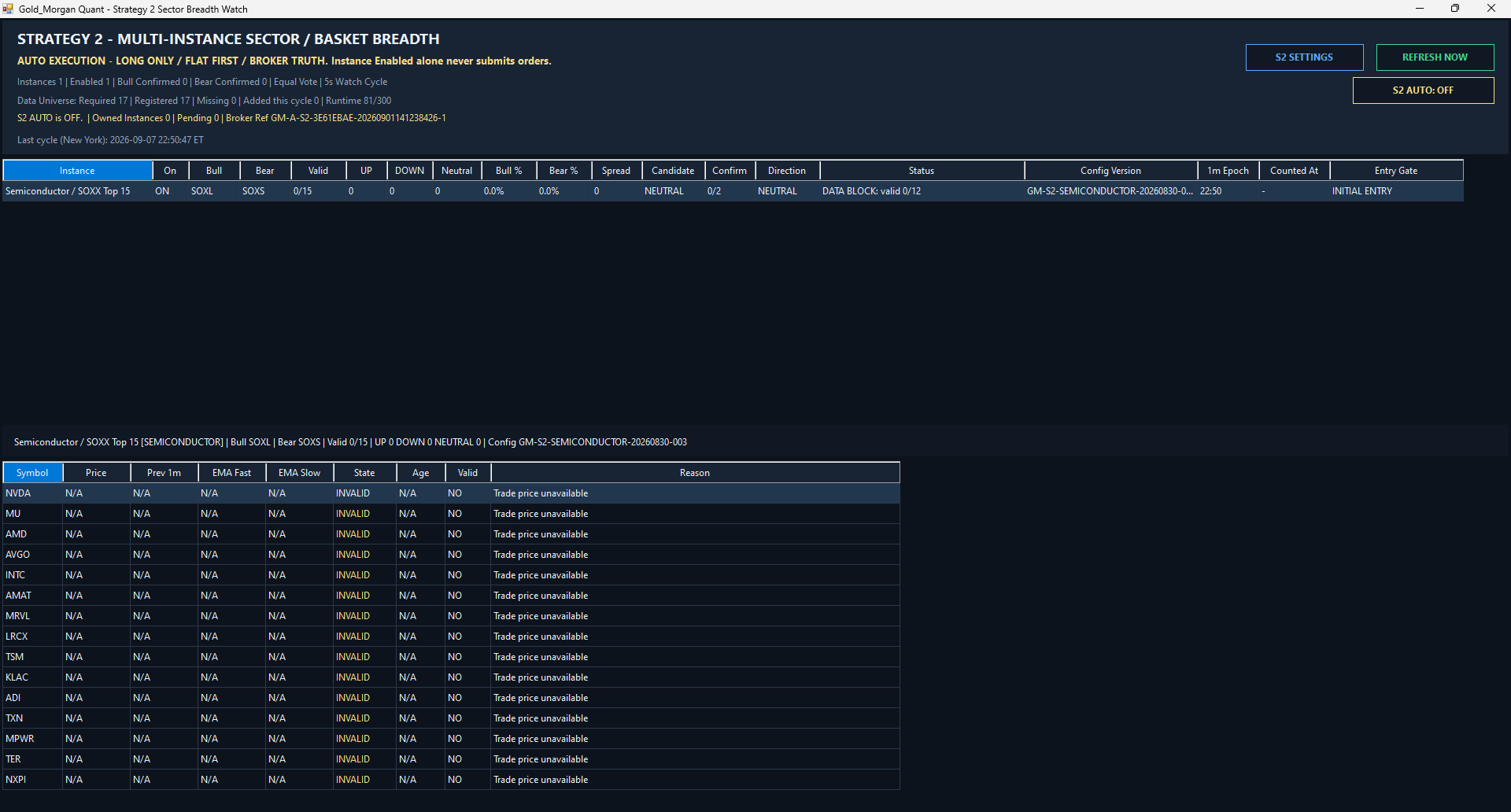
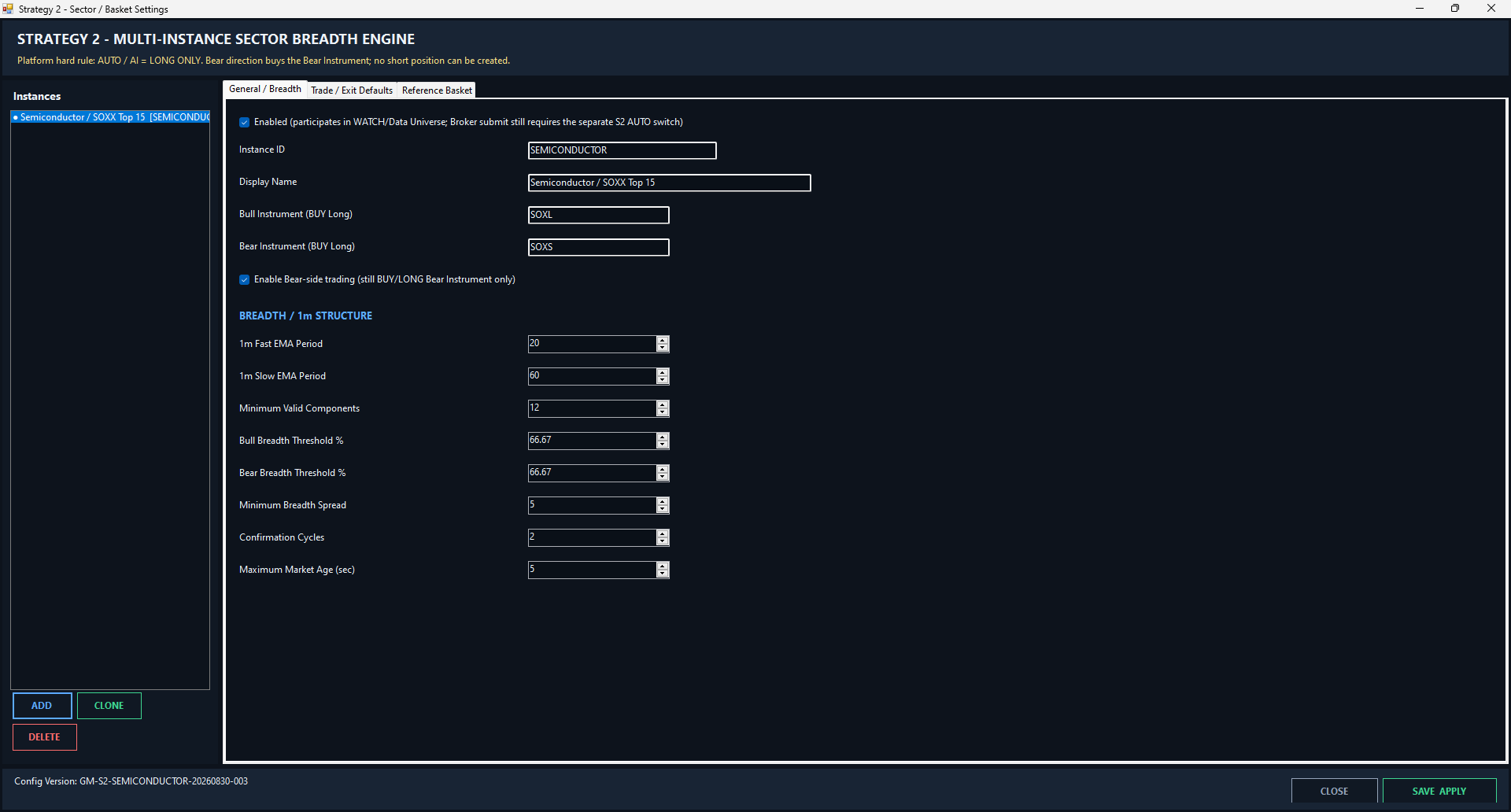
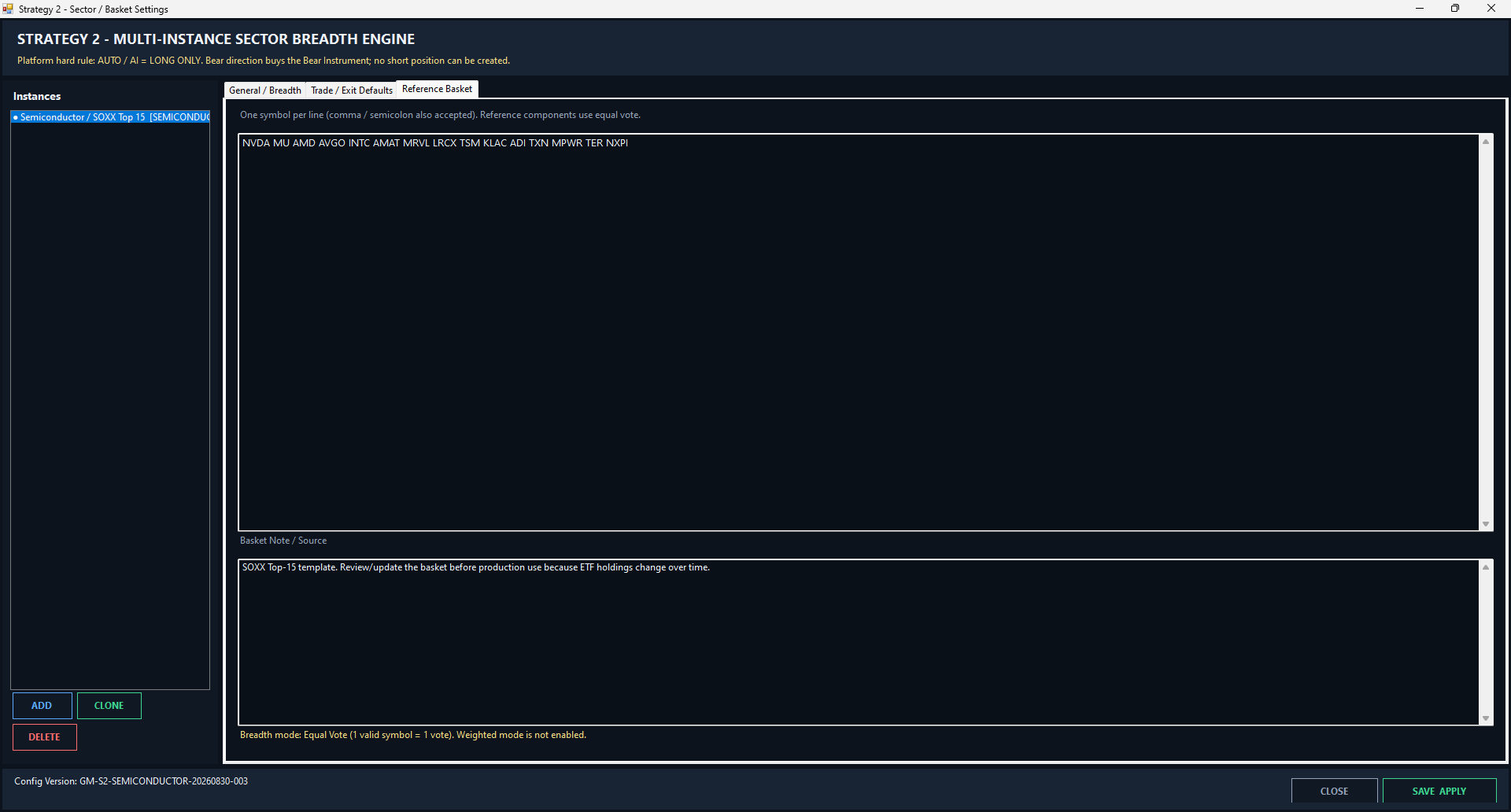
Strategy 2 determines direction from synchronized strength/weakness across a component basket. The current preset is Semiconductor / SOXX Top 15.
| UI / Parameter | Meaning |
|---|---|
| Enabled | Includes the instance in WATCH/Data Universe. Enabled alone never submits Broker orders. |
| S2 AUTO | Separate execution switch. S2 AUTO: OFF means monitoring only. |
| Bull / Bear Instrument | Current preset SOXL / SOXS; Bear direction still means BUY/LONG SOXS. |
| Valid | Number of components with valid data, such as 12/15. |
| UP / DOWN / Neutral | Counts of strong, weak, and neutral components. |
| Bull % / Bear % | Bullish/bearish breadth among valid components. |
| Candidate / Confirm / Direction | Preliminary direction, confirmation progress, and final confirmed direction. |
| Status | Shows DATA BLOCK or other strategy/data states. |
| 1m EMA20 / EMA60 | A component is strong when Price>EMA20>EMA60 and weak under the opposite structure. |
| Minimum Valid Components | Example 12; breadth is blocked below the minimum. |
| Bull / Bear Threshold | Example 66.67%, roughly requiring two-thirds of valid components to agree. |
| Minimum Breadth Spread | Prevents a signal when Bull and Bear counts are too close. |
| Confirmation Cycles | Example 2; direction must remain valid for two consecutive cycles. |
| Maximum Market Age | Stale market data becomes invalid for voting. |
| Reference Basket | Current SOXX Top 15: NVDA, MU, AMD, AVGO, INTC, AMAT, MRVL, LRCX, TSM, KLAC, ADI, TXN, MPWR, TER, NXPI. |
| Equal Vote | Each valid component equals one vote; no market-cap weighting is used. |
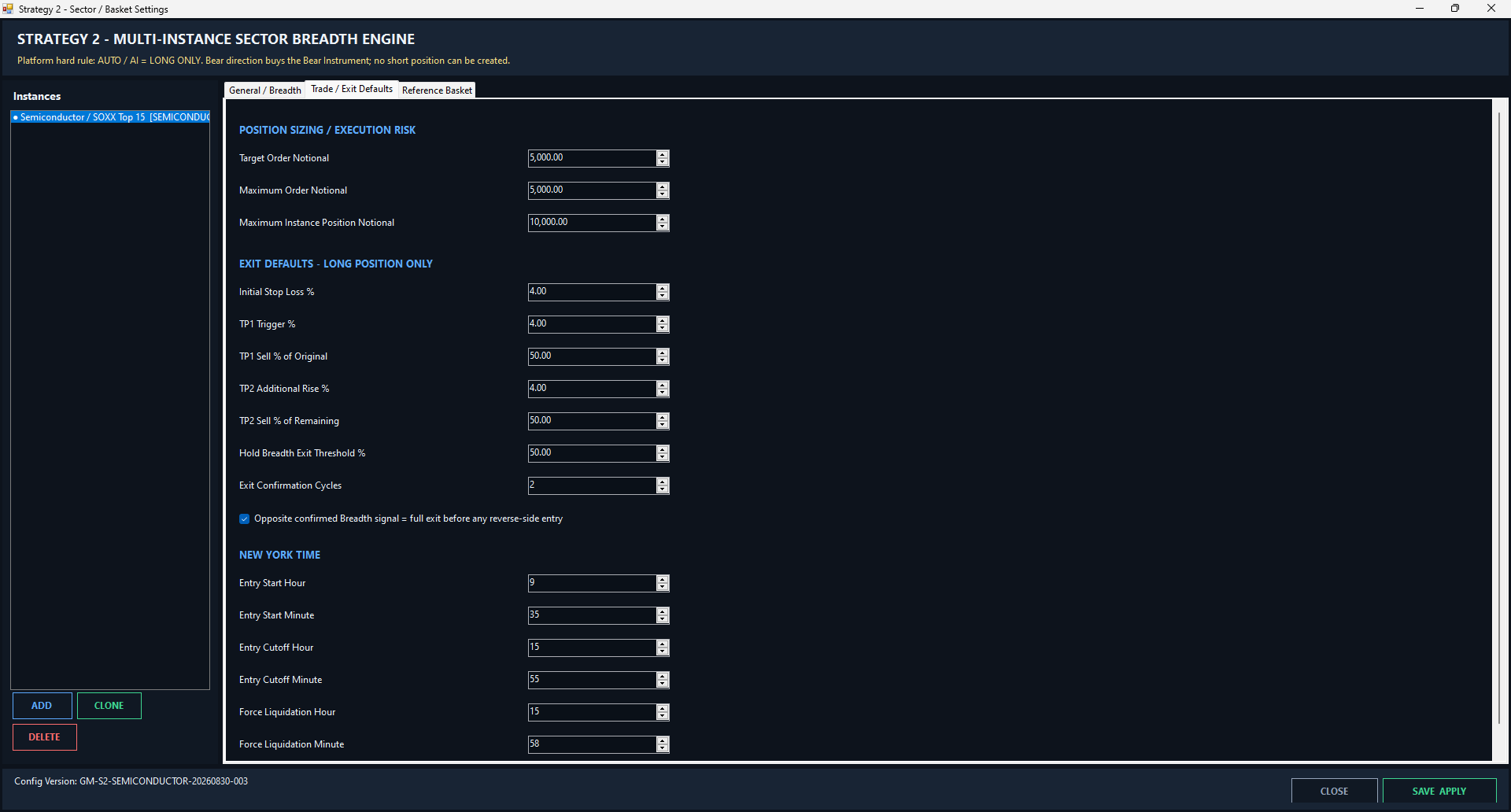
| Target / Max Order Notional | Example target/maximum single order $5,000. |
| Maximum Instance Position Notional | Example maximum instance position $10,000. |
| Initial Stop / TP1 / TP2 | Example: Stop 4%; TP1 at +4% sells 50% of original; TP2 after an additional 4% uses the configured remaining-position percentage. |
| Hold Breadth Exit Threshold | Breadth deterioration can trigger an exit evaluation. |
| Opposite confirmed signal | The old side is fully exited and Broker-flat is confirmed before a reverse-side entry. |
| Entry Start / Cutoff / Force Liquidation | Screenshot example: 09:35, 15:55, and 15:58 New York time. |
12. PRO TRADE
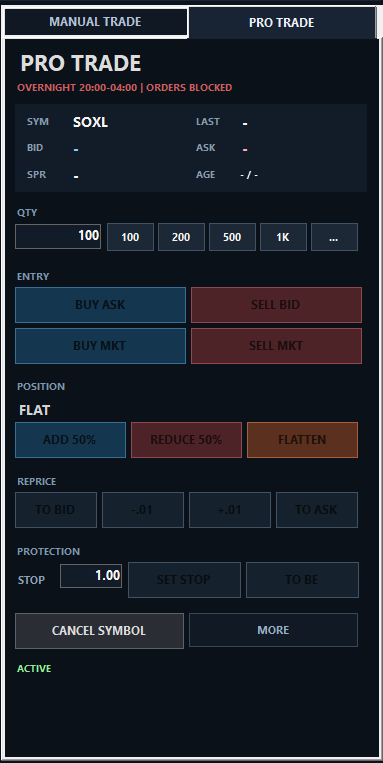
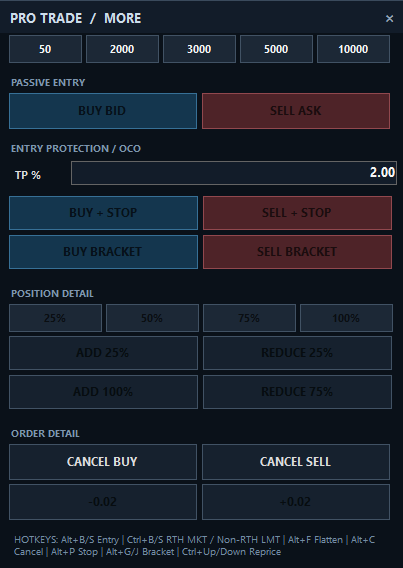
A professional intraday panel for Bid/Ask execution, market orders, repricing, fast scaling, stops, brackets/OCO, and hotkeys.
| UI / Parameter | Meaning |
|---|---|
| LAST / BID / ASK / SPR / AGE | Last trade, book prices, spread, and market-data age. Do not use book-dependent actions when data is missing or stale. |
| QTY | Order quantity; fast buttons include 100, 200, 500, 1K, with ... for more. |
| BUY ASK / SELL BID | More aggressive entry against the opposite side of the book. |
| BUY MKT / SELL MKT | Market orders; fast execution with possible slippage. |
| POSITION / FLAT | Current symbol position; FLAT means no position. |
| ADD 50% / REDUCE 50% | Scale the current position up or down by a percentage. |
| FLATTEN | Quickly brings the current symbol position to flat. Confirm the symbol first. |
| REPRICE | TO BID, -0.01, +0.01, TO ASK; MORE provides +/-0.02 steps. |
| STOP / SET STOP | Configures and submits stop protection for the current position. |
| TO BE | Moves the stop toward break-even. |
| CANCEL SYMBOL | Cancels active orders for the current symbol. |
| BUY BID / SELL ASK | Passive orders resting at Bid/Ask. |
| TP % | Take-profit percentage used by bracket/OCO actions. |
| BUY + STOP / SELL + STOP | Entry with protective stop logic. |
| BUY BRACKET / SELL BRACKET | Bracket/OCO structure combining Entry, Take Profit, and Stop. |
| POSITION DETAIL | 25%/50%/75%/100% position selection plus ADD/REDUCE actions. |
| CANCEL BUY / CANCEL SELL | Separately cancels active Buy or Sell orders for the current symbol. |
Use the hotkey legend shown in the current UI. The screenshot includes Alt+B/S Entry, Ctrl+B/S RTH MKT / Non-RTH LMT, Alt+F Flatten, Alt+C Cancel, Alt+P Stop, Alt+G/J Bracket, and Ctrl+Up/Down Reprice.
13. Quick Troubleshooting Checklist
If Quant cannot trade, market data is missing, AUTO does not run, or Linked orders are not following, use this checklist first. Most common issues can be isolated within 1–3 minutes.
Check these 8 items first
01Quant cannot connect to TWS
- Make sure TWS is running and logged in.
- In TWS, open Global Configuration → API → Settings and allow Socket Clients.
- For Quant and TWS on the same PC, HOST is normally
127.0.0.1. - PORT must match the TWS Socket Port. Common defaults are Live
7496and Paper7497; use the actual TWS setting if you changed it. - If other API applications are connected to the same TWS, make sure Client IDs do not conflict.
02Quant is connected, but a symbol has no price
- Check whether TWS itself has a real-time price. If TWS is delayed or has no quote, Quant cannot create live data.
- Confirm the required IBKR Market Data subscription.
- A newly added symbol needs time to load Historical Bars, Realtime Data, EMA, and Volume Data. Temporary N/A values can be normal.
03Bars are visible but EMA20 / EMA60 shows N/A
- Wait for historical bars to finish loading.
- Confirm TWS Market Data is working.
- Do not repeatedly delete and re-add the same symbol.
EMA calculations require enough historical bars.
04BUY / SELL was clicked but nothing filled
Check ORDERS first and do not repeatedly click the order button.
- Is TRADING showing READY?
- Is TWS Connected?
- Is the order allowed in the current market session?
- Is the Limit Price too far from the market?
- Was there a Broker Reject?
- Does System Messages show an error?
05Why did a Market Order not execute?
Check whether the market is in RTH (09:30–16:00 New York). Outside RTH, some Quant functions use Protected Limit behavior instead of an unprotected Market Order.
If Pro Trade shows ORDERS BLOCKED, that module is not allowing orders at the current time.
06A STOP did not trigger
First determine whether the market is in RTH or Extended Hours.
- During RTH, Quant can submit a true STP order.
- Pre-market / after-hours may use LOCAL STP. Quant monitors the trigger locally and then submits a protected Limit Order.
07Position does not match what I expected
Treat the IBKR Broker Position as the final account position truth.
- Check TWS Portfolio.
- Check Quant POSITIONS.
- Check whether trades were entered from TWS, mobile, Client Portal, or another API application.
- If values disagree, do not keep trading blindly. Restore Broker Position Truth first.
08Why are old orders still visible?
Focus on Status. Orders that normally need attention are Submitted, PreSubmitted, PendingSubmit, and ARMED / Local Stop.
Filled, Cancelled, and Inactive are not current Working Orders.
09CLOSE ALL / FLATTEN cannot execute
- Is TWS Connected?
- Has Broker Position data synchronized?
- Is there a Position Freshness issue?
- Is exiting allowed in the current session?
- Is there already a Working Sell Order?
10Scanner is not finding new symbols
- Is SCAN enabled on the main screen?
- Are Scan Settings too restrictive: Minimum / Maximum Price, Min Gain %, Min USD Volume, USD Volume / Min?
- Is the market currently active?
- Is IBKR Scanner / Market Data operating normally?
Zero results can be valid when scan filters are strict.
11Market Board has no data
- Has the symbol entered the current Quant Runtime?
- Has a real-time trade price been received?
- Has a valid 1-minute bar formed?
WAITING FOR LIVE 1m BARS means Quant is waiting for enough live 1-minute data and is not necessarily an error.
12License status looks wrong
Open Global Settings → License and check LICENSED and Last Online Check.
- Confirm the PC has internet access.
- Click VERIFY ONLINE.
- Click REFRESH LOCAL.
If it still fails, provide the Machine Code, a License-page screenshot, and the error message.
13A feature button is unavailable
Check whether the current License includes the required Entitlement, such as Linked Account, Pro Trader, Scanner, AUTO Strategy, Telegram, or AI.
An unavailable button is not automatically a software bug. The current membership level may not include that module.
14Linked Account cannot bind
- Is the Linked License valid?
- Does ROLE show LINKED?
- Is the Invite Code correct?
- Has another account already claimed the Invite Code?
- Is the Primary online?
- Does Pusher Network show CONNECTED?
After a successful binding, STATUS should no longer show UNBOUND.
15Linked is bound, but no follow order occurs
Primary side:
- Is SEND LINKED ORDERS enabled?
- Does Pusher NETWORK show CONNECTED?
- Did the Primary actually produce an eligible QuantManual fill?
Linked side:
- Is Binding ACTIVE?
- Is the Linked License valid?
- Is Network Connected?
- Did the message exceed MAX DELAY SEC?
- Is Linked execution allowed in the current session?
16Telegram is not sending messages
- Is ENABLE TELEGRAM on?
- Is the Bot Token correct, and does TEST BOT succeed?
- Is the Bot in the target group, and is the Group enabled?
- Is Message Routing configured, and is the Category enabled?
- Open HEALTH / DIAG and check for HEALTHY with Failed = 0.
17Strategy 1 does not produce an Entry
- S1 is Enabled.
- Watch is running.
- Market Data is valid.
- Price / EMA20 / EMA60 conditions are satisfied.
- Volume conditions are satisfied.
- Previous 1m Turnover is satisfied.
- From LOD % is satisfied.
- Min Score is satisfied.
- New Position Cutoff has not passed.
- Max Open Positions has not been reached.
- Risk is PASS.
Use the Watch table Entry / Score / Final / Risk columns as the final explanation.
18S1 has a signal, but AUTO does not place an order
WATCH ≠ AUTO. Watch can calculate signals while AUTO OFF or Broker Execution Locked prevents automated IBKR order submission.
Check ENABLE AUTO and the current AUTO / Broker Execution status at the top of the Watch window.
19Strategy 2 shows DATA BLOCK
Check Valid first. If valid components are below Minimum Valid Components, S2 blocks trading.
Then confirm each component has Trade Price, EMA Fast, EMA Slow, and sufficiently fresh Market Data.
INVALID or Trade price unavailable means that component cannot currently vote in Breadth.
20Strategy 2 shows Bull / Bear but does not trade
- Instance is Enabled.
- Valid count is sufficient.
- Bull / Bear Threshold is satisfied.
- Minimum Breadth Spread is satisfied.
- Confirmation Cycles are complete.
- Direction is actually Confirmed.
- The current time is inside the allowed Entry window.
- S2 AUTO is ON.
- Current Position satisfies FLAT FIRST.
- Risk / Broker Truth is healthy.
21Why does S2 not switch directly from SOXL to SOXS?
This is intentional. Strategy 2 uses FLAT FIRST:
Hold SOXL → Bear Signal Confirmed → SELL SOXL → Broker confirms FLAT → only then can BUY SOXS be considered.
The reverse direction follows the same rule. Opposite S2 positions are not opened simultaneously.
22Pro Trade buttons cannot trade
First check whether the panel shows ORDERS BLOCKED.
- Are LAST / BID / ASK valid?
- Is AGE acceptable?
- Is TWS Connected?
- Does the current Market Session allow the action?
- Is QTY correct?
- Is Broker Position healthy?
Do not use BUY ASK, BUY BID, SELL ASK, or SELL BID when Bid / Ask is “-”.
23Pro Trade Reprice does nothing
Reprice only applies to a current valid Working Order. If the order is already Filled or Cancelled, there is nothing left to reprice.
24AUTO settings cannot be changed
If Quant believes an AUTO-owned Position or unfinished Auto Lifecycle still exists, some Strategy settings may be protected.
First confirm the real account state:
- Broker Position = 0
- No Working Orders
If the Broker is completely Flat with no active orders but Quant still shows old AUTO state, treat it as a state-recovery / cleanup issue. Do not solve it by repeatedly placing orders.
25UNKNOWN / LOCKED / RECOVERY appears
Do not continue automated trading. Verify Broker Position, Working Orders, TWS Connection, Market Data, and the current strategy position.
26Quant reconnects after a disconnect
- Keep TWS healthy.
- Reconnect Quant.
- Wait for Positions recovery.
- Wait for Orders recovery.
- Wait for Market Data recovery.
- Confirm Quant Healthy.
- Only then re-enable Watch / AUTO.
Do not enable automation immediately after the socket reconnects.
27Automatic update fails
Do not manually delete the program directory. Restart Quant first.
App-only update performs Version Check → Download → Size / SHA256 Check → Replace → Restart → Health Check → Rollback when required.
User data, SQLite, License data, and settings are outside the App-only replacement scope.
28Website download fails / download link expired
- Confirm License / Account status.
- Confirm the download link is still within its valid period.
- Confirm a Stable / windows-x64 Release has been published.
- If the link is old, sign in to Account Portal again and click Download to generate a fresh link.
Before contacting technical support, send these items together
- Time of the problem, preferably in New York time.
- Symbol.
- Full Quant main-window screenshot.
- Positions and Orders screenshots.
- System Messages / Status / Reason.
- Current TWS positions and orders screenshot.
- For module-specific issues, also include the relevant page: AUTO Watch, S2 Sector Watch, Follow Access / Settings, Telegram Health, or License.